

| To integrate Visual Guard in your
WCF project you have to:
- Add the assemblies of Visual Guard as references of your project.
- Modify the "web.config" or the "app.config"
file of your application to integrate the Visual Guard module.
- Integrate Visual Guard in the code of your application.
- Create a Visual Guard repository and declare your application
by using the Visual Guard console. This repository will contain
all security items (users, roles, permissions ...) of your application.
- Generate the Visual Guard configuration files by using
the Visual Guard console. These configuration files will be needed
to connect your application to the repository.
- Grant read/write permissions to the repository.
Referencing Visual Guard assemblies
In order to use Visual Guard, you must add references to Visual
Guard assemblies
- Open the solution of your project in Visual Studio.
- In the solution explorer, expand the project
node.
- Right-click the Project node for the project
and select Add Reference from the shortcut menu.
- In .Net tab, select the 3 assemblies Novalys.VisualGuard.Security,
Novalys.VisualGuard.Security.WebForm,
Novalys.VisualGuard.Security.<RepositoryType> (File,
SQLServer or Oracle). Click the Select
button, and then click the OK button
Note: In the list of assemblies, Visual Studio
can display different versions of the Visual Guard assemblies. You
must select the assembly corresponding to the version of the framework
used in your project

If the assemblies do not appear in this list you can use the Browse
tab and select them in the directory <Visual Guard installation
directory>/bin/2.0.
Description of Visual Guard assemblies
- Novalys.VisualGuard.Security contains the
main Visual Guard classes.
- Novalys.VisualGuard.Security.Files contains
the classes needed to access a file based repository.
- Novalys.VisualGuard.Security.SQLServer contains
the classes needed to access a repository stored in a Microsoft
SQLServer database (SQLServer 2000 or higher). Available only
in Visual Guard Enterprise Edition
- Novalys.VisualGuard.Security.Oracle contains
the classes needed to access a repository stored in an Oracle
database (8i or higher). Available only in Visual Guard Enterprise
Edition
- Novalys.VisualGuard.Security.WebService contains
the classes needed for application hosting WCF services. You must
reference this assembly in all project hosting WCF services that
need to be secured by Visual Guard.
Modifying the "app.config" or "web.config"
file of your application
To enable Visual Guard in your application, you must declare and
configure the section class <system.serviceModel>
of your application hosting your WCF services. You can edit your
application configuration file manually or use the Microsoft Service
Configuration Editor (Right-click on your configuration file then
select the option 'Edit WCF Configuration) .
Adding a new service behavior
The first step is to create a new service behavior. This behavior
allows you to indicate how Visual Guard authenticates and authorizes
a client to access a service.
In Service Configuration Editor:
- Right-click on the 'Advanced>Service Behaviors'
node in the tree view.
- Select the option 'New Service Behavior Configuration'.
- Change the name of the behavior (eg: VGSecurityBehavior).
<configuration>
<system.serviceModel>
...
<behaviors>
<serviceBehaviors>
<behavior
name="VGSecurityBehavior">
...
</behavior>
</serviceBehaviors>
...
</behaviors>
</system.serviceModel>
</configuration>
Now, you have to add serviceCredentials and serviceAuthorization
elements to the service behavior
In Service Configuration Editor:
- Right-click on the service behavior node in the tree view.
- Select the option 'Add Behavior Element Extension'.
- Select serviceCredentials and serviceAuthorization elements
then click ok.
In text editor:
<configuration>
<system.serviceModel>
<behaviors>
<serviceBehaviors>
<behavior
name="VGSecurityBehavior">
<serviceCredentials>
...
</serviceCredentials>
<serviceAuthorization>
...
</serviceAuthorization>
</behavior>
</serviceBehaviors>
</behaviors>
</system.serviceModel>
</configuration>
The serviceCredentials element specifies the credential to be used
in authenticating the service and the client credential validation-related
settings.
If you use Username/Password credentials to validate a Visual Guard
account, you have to specify that the UserNamePasswordValidationMode
is 'Custom' and the type of the CustomUserNamePasswordValidatorType
is
'Novalys.VisualGuard.Security.WebService.VGUserNameValidator,
Novalys.VisualGuard.Security.WebService'.
In Service Configuration Editor
- Change the value of UserNamePasswordValidationMode
to Custom.
- Change the value of CustomUserNamePasswordValidatorType
to 'Novalys.VisualGuard.Security.WebService.VGUserNameValidator,
Novalys.VisualGuard.Security.WebService'.
In text editor:
<configuration>
<system.serviceModel>
<behaviors>
<serviceBehaviors>
<behavior
name="VGSecurityBehavior">
<serviceCredentials>
<usernameAuthentication
userNamePasswordValidationMode="Custom"
customUserNamePasswordValidator="Novalys.VisualGuard.Security.WebService.VGUserNameValidator,
Novalys.VisualGuard.Security.WebService"
cachedLogonTokens="true"
/>
</serviceCredentials>
<serviceAuthorization>
...
</serviceAuthorization>
</behavior>
</serviceBehaviors>
</behaviors>
</system.serviceModel>
</configuration>
You can use your own authentication mechanism or any authentication
mechanisms compatible with WCF (Windows account...) . In this case,
you can edit your own configuration for the serviceCredentials
element. Visual Guard will use the identity provided by WCF to check
the access to the service.
Now you have to specify that the authorization access checking is
provided by Visual Guard. To do that, you must specify in the serviceAuthorization
element that the PrincipalPermissionMode is 'Custom'
and the ServiceAuthorizationManagerType is 'Novalys.VisualGuard.Security.WebService.VGServiceAuthorizationManager,
Novalys.VisualGuard.Security.WebService'.
In Service Configuration Editor
- Select the serviceAuthorization node in the tree view.
- Change the value of PrincipalPermissionMode to 'Custom'.
- Change the value of ServiceAuthorizationManagerType to 'Novalys.VisualGuard.Security.WebService.VGServiceAuthorizationManager,
Novalys.VisualGuard.Security.WebService'.
In text editor:
<configuration>
<system.serviceModel>
<behaviors>
<serviceBehaviors>
<behavior
name="VGSecurityBehavior">
<serviceCredentials>
<usernameAuthentication
userNamePasswordValidationMode="Custom"
customUserNamePasswordValidator="Novalys.VisualGuard.Security.WebService.VGUserNameValidator,Novalys.VisualGuard.Security.WebService"
cachedLogonTokens="true"
/>
</serviceCredentials>
<serviceAuthorization
principalPermissionMode="Custom"
serviceAuthorizationManagerType="Novalys.VisualGuard.Security.WebService.VGServiceAuthorizationManager,
Novalys.VisualGuard.Security.WebService"
/>
</behavior>
</serviceBehaviors>
</behaviors>
</system.serviceModel>
</configuration>
The Visual Guard Service authorization manager will check the authorization
access of the current identity. When the current identity is not
allowed to access the application (when the user account is not
defined in the repository or is not a member of a role of the application),
Visual Guard will reject the access to the service if anonymous
sessions are not allowed. When anonymous sessions are allowed, the
caller is authorized to access the service and becomes a member
of the Anonymous role.
Configuring the service
You have to specify the service behavior defined above to all services
requiring Visual Guard authentication and authorization mechanism.
In Service Configuration Editor
- Select the node of the service to configure.
- Select the BehaviorConfiguration property
in the right pane and select the service behavior defined above
(eg:).
In text editor:
<configuration>
<system.serviceModel>
<services>
<service
behaviorConfiguration="VGSecurityBehavior"
name="CalculatorService">
<endpoint
binding="wsHttpBinding"
contract="ICalculatorService"
/>
</services>
....
</system.serviceModel>
</configuration>
Integrating Visual Guard in your code
The main class in Visual Guard is Novalys.VisualGuard.Security.VGSecurityManager.
This class provides the main access point for interacting with Visual
Guard. It allows you to set the security of your application object.
You have 3 types of code to integrate Visual Guard in your code:
- When you want to restrict the access of a service to a caller.
- When you want to apply security actions on a WebService, a
custom class or custom control, you must call Visual Guard to
set the security of this object.
- When you want to check if a user has a specific permission
or a specific role, in which case you can use Novalys.VisualGuard.Security.VGSecurityManager.Principal
.
Restricting the access to a service
Visual Guard is compatible with the standard PrincipalPermissionAttribute
class. This attribute will check whether a user is authenticated
or is a member of a role. Visual Guard also provides its own attribute:
Novalys.VisualGuard.Security.VGPrincipalPermission. This attribute
is similar to the standard PrincipalPermissionAttribute class and
allows you to check a Visual Guard role or aVisual Guard permission
and does not requires
The following example demonstrates how to restrict access to the
"Multiply" operation to a caller with the permission "CanMultiply".
[C#]
[(.Demand,
Name="CanMultiply", Type=.Permission)]
public double Multiply(double
n1, double n2)
{
return n1 * n2;
}
[Visual Basic]
<(.Demand,
Name:="CanMultiply", Type=.Permission)>
_
Public Function Multiply(Double n1,
Double n2) As Double
Return n1
* n2
End Function
Securing application objects
If you need to apply Visual Guard security actions on an object
of your application, you will need to call Visual Guard to set the
security of the object. To do that, you must:
- Add the Novalys.VisualGuard.Security.VGISecurable interface
to your class.
- Add the call to the VGSecurityManager.SetSecurity method at
the end of the constructor.
If you want to understand how Visual Guard applies security to
your application objects, see How Visual Guard secures an application.
The following code shows how to secure the Calculator class that
implements the ICalculator service contract:
[C#]
public class Calculator:
{
public
Calculator()
{
.SetSecurity(this);
}
public
double Multiply(double n1,
double n2)
{
return
n1 * n2;
}
}
[Visual Basic]
Public Class Calculator
Implemenents
ICalculator, VGISecurable
Private
Sub New()
.SetSecurity(Me)
End
Sub
Public
Function Multiply(ByVal n1
as Double, ByVal
n2 as Double) As
Double
Return
n1 * n2;
End
Function
End Class
How to filter granted roles
If a user has more than one role, by default Visual Guard creates
a permission set that will be a union of all permission sets granted
to these roles. If you want to select only one role or filter roles
granted to the user, you can handle the event VGSecurityManager.PermissionsLoading.
The following example demonstrates how to select the role Administrator
if this role is granted:
[Visual Basic]
Sub VGSecurityManager_PermissionLoading(ByVal
sender As Object, ByVal
e As VGPermissionsLoadingEventArgs)
If e.Roles.Length >
1 Then
Dim selectedRoles(1)
As Novalys.VisualGuard.Security.VGGrantedRole
For Each role
As Novalys.VisualGuard.Security.VGGrantedRole
In e.Roles
If
role.Name = "Administrator"
Then
selectedRoles(0)
= role
Exit
For
Else
If
role.Name = "Member" Then
selectedRoles(0)
= role
Exit
For
End
If
End If
Next
If selectedRoles(0)
Is Nothing Then
e.Status = Novalys.VisualGuard.Security.VGAuthorizationStatus.ProcessCanceled
Else
e.Roles = selectedRoles
End If
End If
End Sub
[C#]
void VGSecurityManager_PermissionLoading(object
sender, VGPermissionsLoadingEventArgs args)
{
if (e.Roles.Length
> 1)
{
Novalys.VisualGuard.Security.VGGrantedRole[]
selectedRoles = new Novalys.VisualGuard.Security.VGGrantedRole[1];
foreach
(Novalys.VisualGuard.Security.VGGrantedRole role in e.Roles)
{
if (role.Name
== "Administrator")
{
selectedRoles[0]
= role;
break;
}
else if
(role.Name == "Member")
{
selectedRoles[0]
= role;
break;
}
}
if (selectedRoles[0]
== null)
{
e.Status = Novalys.VisualGuard.Security.VGAuthorizationStatus.ProcessCanceled;
}
else
{
e.Roles = selectedRoles;
}
}
}
How to change default Visual Guard configuration settings
By default, Visual Guard uses the Visual Guard configuration files
located in the same directory as the Novalys.VisualGuard.Security.dll
assemblies. It is possible to change the path of the configuration
file or configuration at runtime by handling the event VGServiceRuntimeProvider.RuntimeInitialized.
Creating a repository and declaring the application
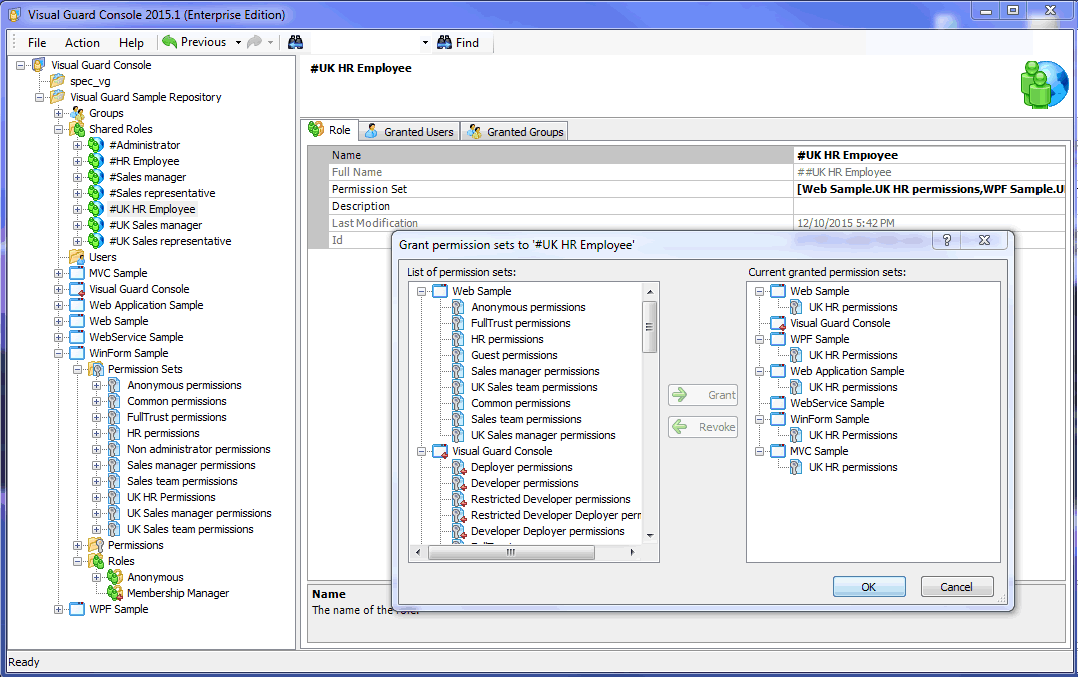
Once Visual Guard is integrated in your application, you can create
the repository containing the information about the security of
your application (users, roles, permissions ...). You must launch
the Visual Guard console, right-click the root node in the treeview
then select the option "Add repository".
After creating the repository, you must declare your application
in the repository. Right-click the node corresponding to your repository
then select the option "Connect...".
After the connection, right-click on the repository node then select
the option "Add application". At the
end of the wizard, the console will generate 2 configuration files
in the directory containing the assemblies of your application.
Note: If you want to test the connection to this
repository from your application, you will need to create a role
for your application in the Visual Guard console and grant this
role to a user. A user defined in the repository can access your
application only when a role of the application is granted to this
user.
Granting Read/Write permission to the Repository
Visual Guard needs to grant Read/Write permissions to access the
repository. For example, for a file based repository you must grant
"Modify" permission to the directory containing the repository
for ASP.NET user accounts. For a repository stored in a database,
the user used to access the Visual Guard repository database must
be a member of "vg_BasicAccess" role.
In most cases, you must grant this permission to a "MACHINE\ASPNET"
user account. If you use IIS 6.0 on Windows Server 2003 the user
account is "NT Authority\Network Service". If you use
impersonation, you must grant permission to "MACHINE\IUSR_<MACHINE>"
for Form authentication mode and "Domain\UserName" for
Windows integrated authentication mode.
To change permission to a directory, you must:
- Open the Explorer.
- Right click the directory containing the repository data then
select the menu "Properties".
- In the "Security" tab, click on the
"Add" button and select the user for
which you want to grant the permission (i.e. MACHINE\ASPNET) then
click OK.
- In the list of permissions, click the option "Modify"
then click on the OK button.
See Also
Debugging
Visual Guard Security Actions
How
to apply security in your application
How
Visual Guard secures an application
How to generate or edit the Visual Guard configuration files
Top
|