
How to integrate Visual Guard in WPF application
To integrate Visual Guard in your WPF application you have to:
- Add the assemblies of Visual Guard as references of your project.
- Integrate Visual Guard in the code of your application.
- Create a Visual Guard repository and declare your application by using the Visual Guard console. This repository will contain all security items (users, roles, permissions ...) of your application.
- Generate the Visual Guard configuration files using the Visual Guard console. These configuration files will be needed to connect your application to the repository.
- Grant read/write permissions to the repository.
Referencing Visual Guard assemblies
In order to use Visual Guard, you must add references to Visual Guard assemblies:
- Open the solution of your project in Visual Studio.
- In the solution explorer, expand the project node.
- Right-click the Project node for the project and select Add Reference from the shortcut menu.
- In .Net tab, select the 2 assemblies Novalys.VisualGuard.Security, Novalys.VisualGuard.Security.<RepositoryType> (File, SQLServer or Oracle).Click the Select button, and then click the OK button
Note: In the list of assemblies, Visual Studio can display different versions of the Visual Guard assemblies. You must select the assembly corresponding to the version of the framework used in your project.
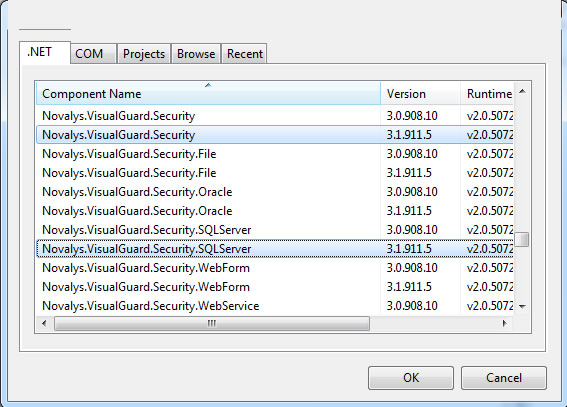
If the assemblies do not appear in this list, you can use the Browse tab and select them in the directory <Visual Guard installation directory> Visual Guard Console
Description of Visual Guard assemblies:
- Novalys.VisualGuard.Security contains the main Visual Guard classes.
- Novalys.VisualGuard.Security.Files contains the classes needed to access to a file based repository.
- Novalys.VisualGuard.Security.SQLServer contains the classes needed to access to a repository stored in a Microsoft SQLServer database (SQLServer 2000 or higher). Available only in Visual Guard Enterprise Edition
- Novalys.VisualGuard.Security.Oracle contains the classes needed to access to a repository stored in an Oracle database (8i or higher). Available only in Visual Guard Enterprise Edition
Adding Visual Guard in your code
There is 1 main class in Visual Guard:
-
Novalys.VisualGuard.Security.VGSecurityManager: This class provides the main access point for interacting with Visual Guard. It provides authentication and authorization features, and it allows you to set the security of the object of your application.
You must load the security before all other code. In this case, you will be sure to set the security of all the objects of your application. Visual Guard will not automatically set the security of this windows. In this case, you must set the security of this window after loading the permissions of the user (see the method VGSecurityManager.SetSecurity).
Authenticating a user with your own login window
The following example demonstrates how to authenticate a user. This code can be inserted in the click event of the OK button in a login form (1):
[C#]
using Novalys.VisualGuard.Security;
......
VGAuthenticationState state = VGSecurityManager.Authenticate(txtUserName.Text, txtPassword.Password);
if (state.IsFailed)
{
	DialogResult = false;
	if (state.IsCanceled) return;
	if (state.IsCredentialInvalid)
	{
		if (state.IsLastBadLogin)
		{
			MessageBox.Show("Invalid user or password. The next bad login will lock your account.");
		}
		else
		{
			MessageBox.Show("Invalid user or password");
		}
	}
	else if (state.IsUserNotAuthorized)
	{
		MessageBox.Show("user not authorized to log on the application");
	}
	else if (state.IsUserAccountExpired)
	{
		MessageBox.Show("your account is no more valid. Contact your administrator");
	}
	else if (state.IsUserAccountNotYetAvailable)
	{
		MessageBox.Show("your account is not yet available.");
	}
	else if (state.IsUserAccountLockedOut)
	{
		MessageBox.Show("your account is locked. Contact your administrator.");
	}
	else if (state.MustChangePasswordAtNextLogon)
	{
		MessageBox.Show("Your password is not secure enough. You must change it.");
	}
}
else
{

	DialogResult = true;
	if (!state.IsPasswordSecure)
	{
		MessageBox.Show("Your password is not secure enough. You must change it.");
	}
}
Call the login windows in the App.xaml
In the xaml of the App.xaml file, you have to change the startup. You have to the event "Application_Startup".
<Application x:Class="HowToWPF.App"
xmlns="http://schemas.microsoft.com/winfx/2006/xaml/presentation"
xmlns:x="http://schemas.microsoft.com/winfx/2006/xaml"
Startup="Application_Startup">
In the code behind, in the event Application_startup you have to call the login page(1).
using Novalys.VisualGuard.Security;
...
private void Application_Startup(object sender, StartupEventArgs e)
{
	Application.Current.ShutdownMode = ShutdownMode.OnExplicitShutdown;

	//Call the login Page
	UserLogin uLogin = new UserLogin();
	bool? result = uLogin.ShowDialog();
	Application.Current.MainWindow = null;
	Application.Current.ShutdownMode = ShutdownMode.OnMainWindowClose;
	if (result.Value == true)
	{
		Window1 win = new Window1();
		win.Show();
	}
	else
	{
		MessageBox.Show("Authentication Error");
		Application.Current.Shutdown(1);
	}
}
Authenticating a user with a Windows account
The following example demonstrates how to authenticate a user using a Windows account. This code has to be inserted in the Application_startup event (1):
using Novalys.VisualGuard.Security;
...
VGAuthorizationState state = VGSecurityManager.LoadSecurity(System.Security.Principal.WindowsIdentity.GetCurrent());
if (state.IsFailed)
{
	if (state.IsUserNotFound)
	{
		MessageBox.Show("Your are not declared in the security repository");
	}
	else if (state.IsUserNotAuthorized)
	{
		MessageBox.Show("Your are not authorized to log on to this application");
	}
}
else
{
	Window1 win = new Window1();
	win.Show();
}
Secure window class in your application
To secure a Window class in your application, you must do the following:
-
Add the Novalys.VisualGuard.Security.VGISecurable interface to your class.
-
Add the call to the VGSecurityManager.SetSecurity method at the end of the constructor.
using Novalys.VisualGuard.Security;
...

public partial class Window1 : Window, VGISecurable
{
	public Window1()
	{
		InitializeComponent();
		VGSecurityManager.SetSecurity(this);
	}
}